
Payments
Invoicing and Collecting Payments in DecoGro is simple and easy for your shop and your customers. Customers can receive beautiful detailed invoices that can be viewed and paid on any device. You can also record payments made outside of DecoGro such as cash or check payments. DecoGro invoices make shops of any size look like seasoned professionals!
Requesting Payments
Section titled “Requesting Payments”Requesting payments in DecoGro is done with the click of a button. As a reminder, before you can request any payments, you’ll need to enable DecoGro Payments by going to Admin Settings > Payments. To learn more about setting up DecoGro Payments, Click Here.
How Do I Request Payment?
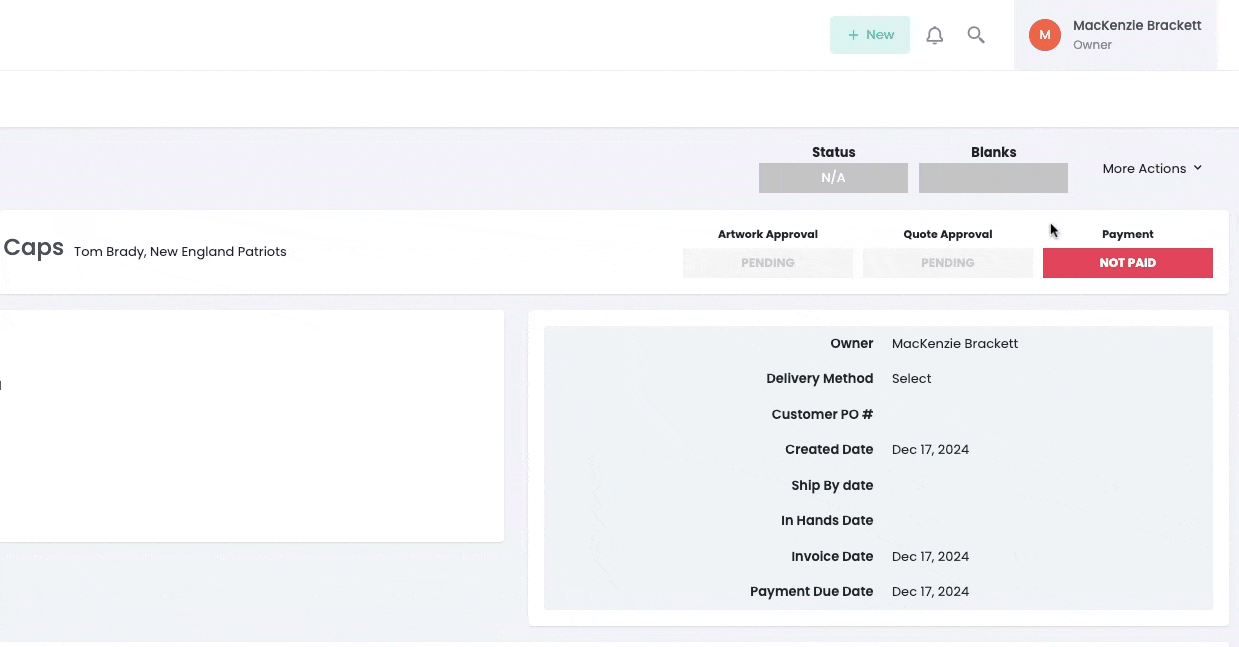
Section titled “How Do I Request Payment?”When you are ready to request a payment from your customer, go to the order overview page, open the More Actions dropdown, and click Request Payment. You can also request payment from the payments tab of an order. In the popup, you can enter the amount of money you would like to request. By default, the requested amount will be the total outstanding balance on the order. You can choose to enter a dollar amount or a percentage of the total order.
You can also choose whether to allow your customer to pay by Card, ACH, or either. To learn more about ACH Payments, Click Here.
Optionally, you can choose to send the payment request as an email. If you do not send the payment request email, then the payment request will be added to the customer invoice view, but your customer will not be notified.
How Does My Customer Pay?
Section titled “How Does My Customer Pay?”Your customer will be able to pay from the customer invoice view. The link to the customer invoice view can be found under the More Actions dropdown. Also, if you sent your payment request via email, the email will contain a link to the customer invoice view.
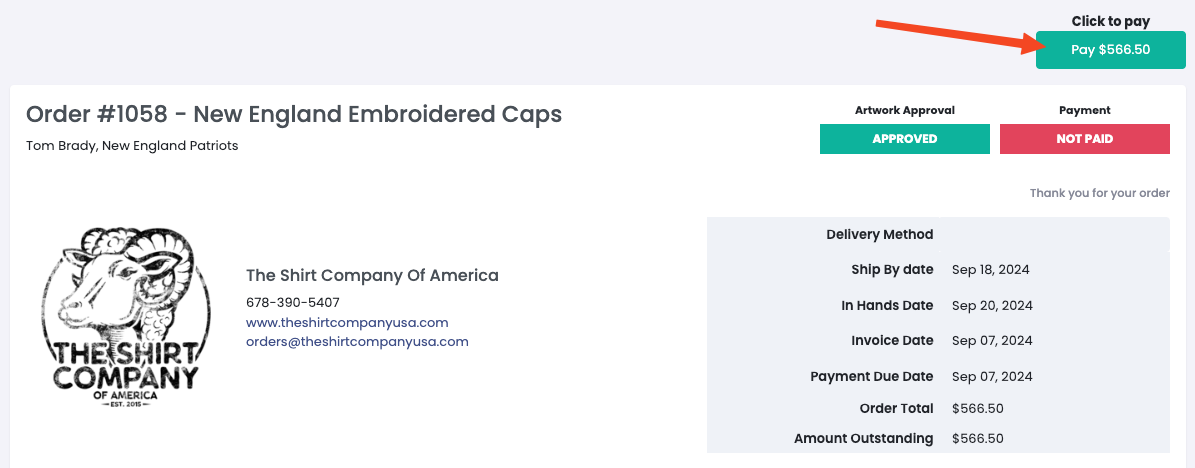
On the customer invoice view, the payment request will appear in the top right. All your customer has to do is click Pay and enter their payment information.
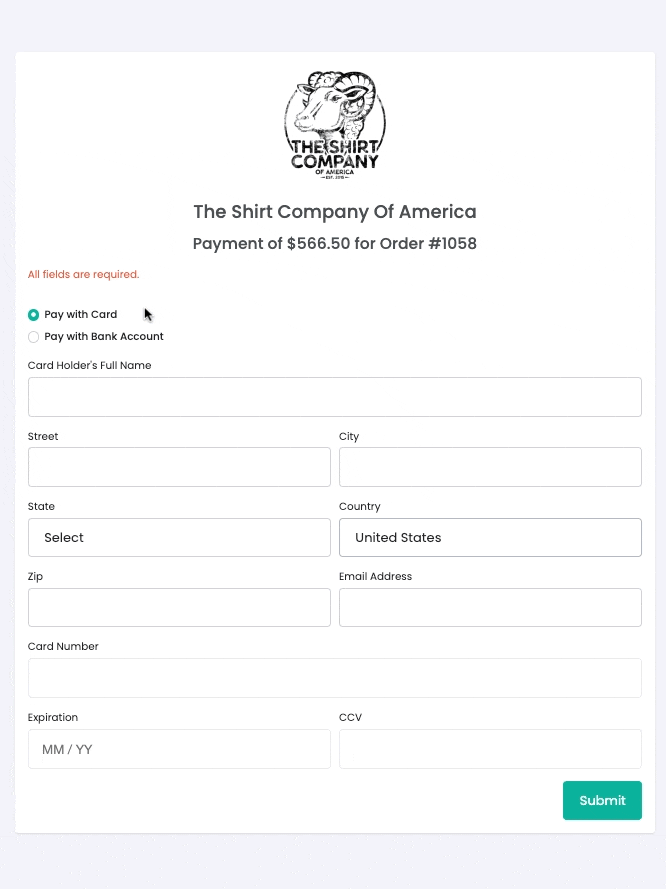
On the payment screen, your customer can choose to pay with card or bank account. If you have only allowed one of these options, then only that option will be available to the customer.
After your customer pays, you will be notified based on your notification settings and your customer will receive a receipt for their payment via email.
How Do I Manually Record Payments?
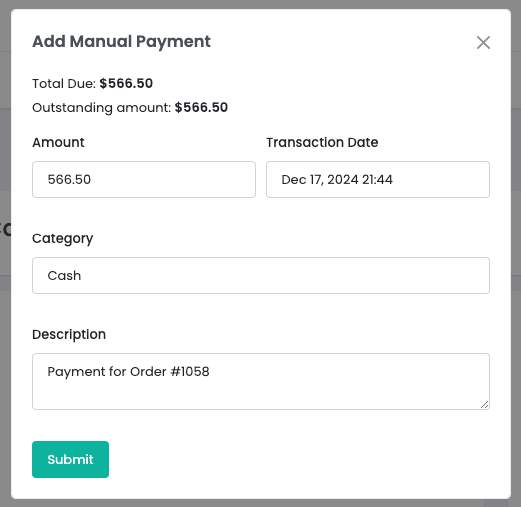
Section titled “How Do I Manually Record Payments?”If a customer is not paying via DecoGro payments, you can manually record their payment. Just go to the order overview page, open the More Actions dropdown, and click Record Manual Payment. You can also record a manual payment on the Payments tab of an order. Receipts are not automatically sent for manual payments.
In this popup, you can manually enter the amount paid, the transaction date, and the transaction type (e.g., cash, check, etc.), and a description of the payment. Please note that manual transaction types can be configured in the Admin Settings.
What are the Payment Statuses?
Section titled “What are the Payment Statuses?”The payment status of an order tells you whether it has been paid or not. The possible payment statuses are:
- Not Paid meaning no payment has been made on an order.
- Processing meaning an ACH payment has been made, but the payment has not yet been cleared by the customer’s bank. It is important to note that if an ACH payment is processing, then it may still fail. Once the ACH payment has been cleared by the customer’s bank, it will move to either partially paid or paid depending on if there is still an outstanding balance. If the ACH payment fails, then the status will change back to Not Paid and you will receive a notification. Card payments do not have a processing status because they are processed immediately.
- Partially Paid meaning a payment has been made on an order, but there is still an outstanding balance.
- Paid meaning the entire balance of the order has been paid.
Where Can I Find Payment Records and Info After a Payment is Made?
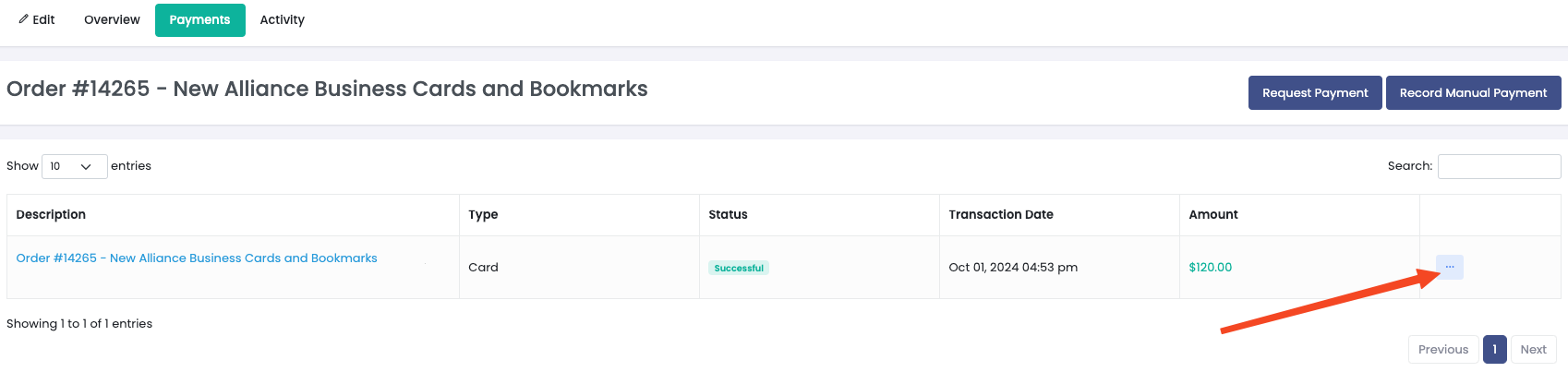
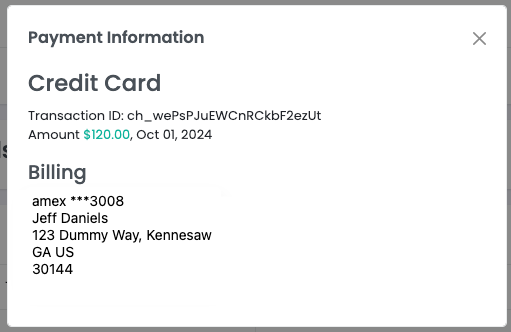
Section titled “Where Can I Find Payment Records and Info After a Payment is Made?”On any order page, under the payments tab, you can find a history of all transactions for that order. This includes payments made online, manually recorded payments, and refunds. Click the three dots dropdown, and select details to see more payment information.
To see all transactions for all orders, click on financials on the left side menu, then go to the payment tab. From this view, you can filter, search, and sort all of your payments.