
Table Filters
What are Filters?
Section titled “What are Filters?”Filters allow you to narrow down the specific orders you want to see based on order informations, status, or any other column in your table! You can use various filters to create views for different departments and workflows in your shop. To learn more about setting up views, Click Here.
How Do I Add a Filter?
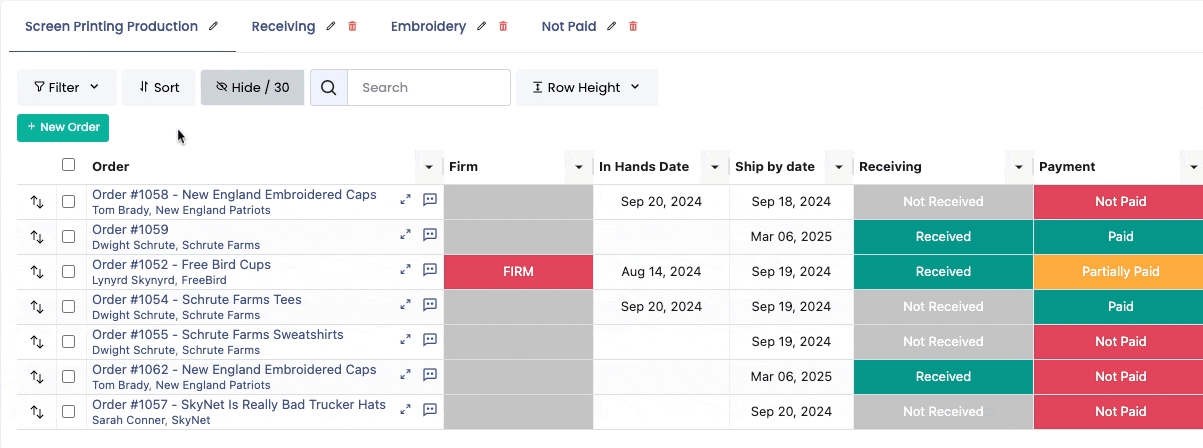
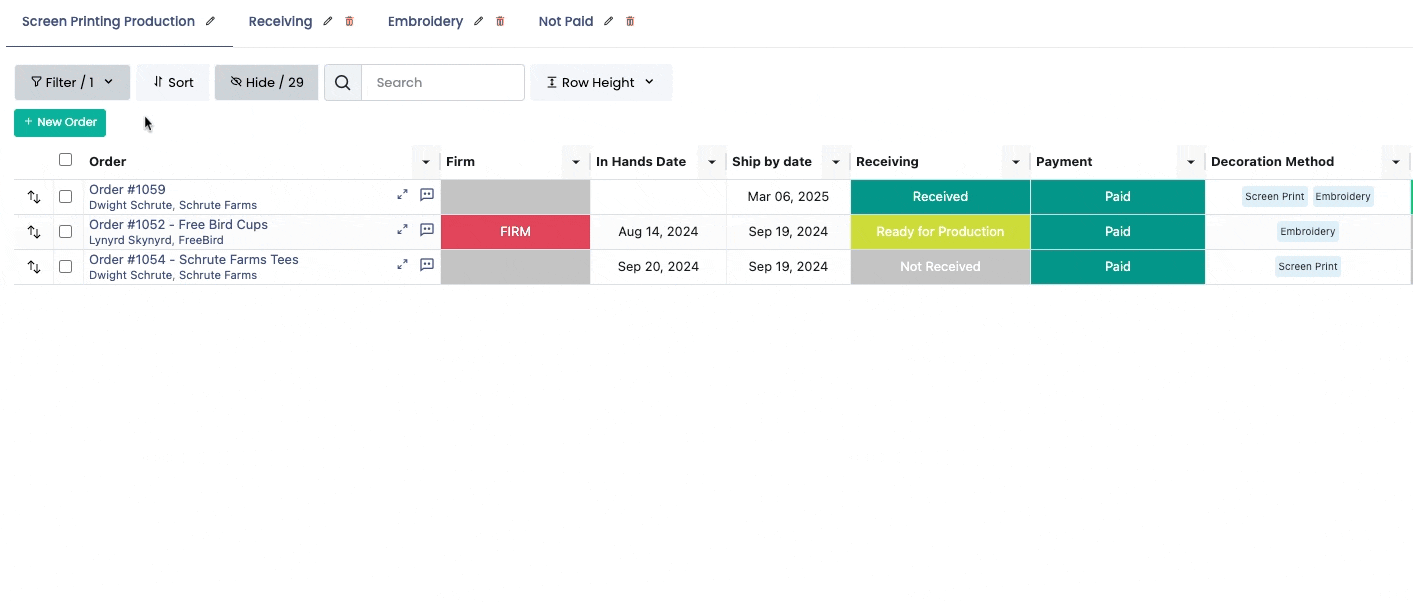
Section titled “How Do I Add a Filter?”To add a filter, just click on the filters dropdown. Then, go ahead and choose the column you want to filter by, the condition, and the value. The dropdown will provide results based on the specific conditions and values selected.
Whenever you add or change filters on a table view, it will automatically save the filter to that view.
By clicking on the “New group” button underneath the filter parameters, you can add new conditions to your filter with “And” or “Or” extensions. Once you’ve added the new group, you can customize the filter by selecting the column, condition and value of the filter.
Please note, To set up additional filtering within a group, simply click ”+ New filter” within the grey box outlining the group you’ve created.
Understanding Conditions
Section titled “Understanding Conditions”DecoGro filters offer a lot of condition options, with even more to come in the future. Use the guide below to understand what each one does for our most commonly used columns. Each column type will result in different options:
Text Columns
Text Columns include the order name, addresses, notes, and any custom text columns.
- **Contains **contains this text anywhere in the column
- Doesn’t Contain - does not contain this text anywhere in the column
- Starts With - the text in the column starts with this text
- Is Empty - the column has no text
- Is Not Empty - the column has any text Date Columns
Date Columns include all dates from the order overview page and any custom date columns
- Is - date falls in the selected timeframe
- Is Not - date does not fall in the selected time frame
- Is Empty - the column has not date
- Is Not Empty - the column has any date
- In The Next - date falls within the next X number of Days, Workdays, Weeks, or Months
- In The Last - date falls within the last X number of Days, Workdays, Weeks, or Months
- Is Between - date falls between two specific dates
- Is On or After - date falls during or after the selected time frame
- After - date falls after the selected time frame
- Is On or Before - date falls during or before the selected time frame
- Before - date falls before the selected time frame Number Columns
Number Columns include any dollar amount or number columns.
- Equals - number is exactly equal to the column value
- **Does Not Equal **number is not equal to the column value
- **Is Greater Than **number is greater than the column value
- **Is Less Than **number is less than the column value
- **Is Greater Than or Equal to **number is greater then or exactly equal to the column value
- **Is Less Than or Equal to **number is less than or exactly equal to the column value Status Columns
Status Columns include payment status, approval statuses, and any custom statuses.
-
Is - status is the selected status
-
Is Not - status is not the selected status
-
Is Any Of - status is any of the selected statuses
-
Is None Of - status is none of the selected statuses Tag Columns
-
Has Any Of - the tag column contains any of the selected tags
-
Has All Of - the tag column contains all of the selected tags
-
Is Exactly - the tag column contains all of the selected tags and no additional tags
-
Has None Of - the tag column contains none of the selected tags
-
Is Empty - the tag column is empty
-
Is Not Empty - the tag column is not empty User Columns
User Columns include the owner of the order and any custom user columns.
- **Is **user is the selected user
- **Is Not **user is the selected user
- **Is Any Of **user is any of the selected users
- **Is None Of **user is none of the selected users
- **Is Empty **user column is empty
- **Is Not Empty **user column is not empty